Introduction
Search engines use automated programs called crawlers to discover and access pages, files, images, and other resources on websites.
As a website grows, not every URL needs to be crawled.
A website may contain:
administrative directories
login pages
internal search results
duplicate URLs
temporary files
cart and checkout pages
development resources
tracking URLs
dynamically generated parameters
This is where robots.txt becomes useful.
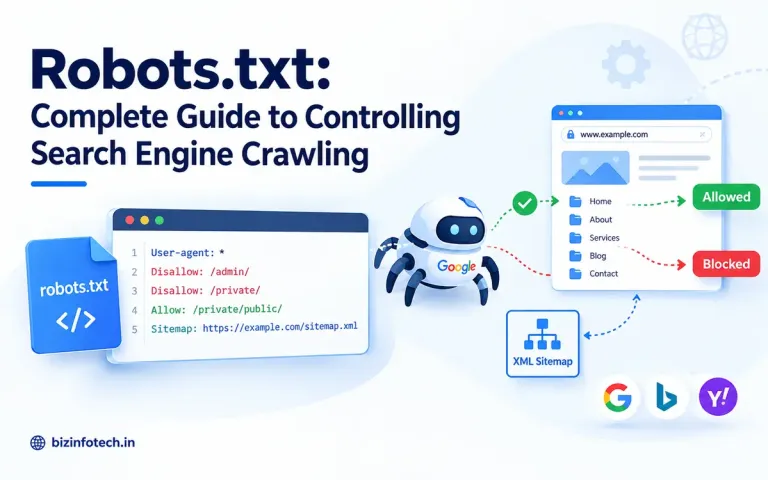
A robots.txt file allows website owners to communicate which parts of a website crawlers are allowed or not allowed to request. Google describes robots.txt primarily as a way to manage crawler access and traffic—not as a mechanism for removing pages from Google's search results.
For SEO, understanding robots.txt is important because an incorrect rule can accidentally block search engines from crawling important pages.
This guide explains what robots.txt is, how it works, how to create one, common directives, practical examples, common mistakes, and how to use robots.txt correctly alongside XML sitemaps and other SEO controls.
What Is Robots.txt?
robots.txt is a plain-text file placed at the root of a website that provides crawling instructions to automated clients, including search-engine crawlers.
For example:
https://example.com/robots.txt
The file contains rules that tell crawlers which URL paths they may or may not request.
A simple robots.txt file might look like this:
User-agent: * Disallow: /admin/ Sitemap: https://example.com/sitemap.xml
This tells crawlers that the /admin/ path should not be crawled while also providing the location of the XML sitemap.
The Robots Exclusion Protocol is formally described in RFC 9309, which defines the standard behavior and syntax for robots.txt.
What Is the Purpose of Robots.txt?
The primary purpose of robots.txt is to control crawler access to parts of a website.
It can be useful for:
managing crawler traffic
preventing crawling of unimportant URLs
avoiding crawling of certain duplicate or parameter-based URLs
protecting server resources from unnecessary crawler requests
controlling access to specific files or directories
specifying the location of an XML sitemap
Google specifically describes robots.txt as a mechanism for controlling which URLs crawlers can access.
How Does Robots.txt Work?
The process is relatively simple.
When a crawler visits a website, it can first request:
/robots.txt
For example:
https://example.com/robots.txt
The crawler reads the applicable rules and uses them when deciding whether it may request particular URLs.
A simplified process looks like this:
Crawler
↓
Requests robots.txt
↓
Reads applicable rules
↓
Checks requested URL
↓
Allowed → Crawl
Disallowed → Do not crawl
However, robots.txt is based on crawler compliance with the Robots Exclusion Protocol. It is not an authentication or security mechanism.
Where Should Robots.txt Be Located?
The file must be placed at the root of the applicable host.
For example:
https://example.com/robots.txt
is valid.
But:
https://example.com/blog/robots.txt
does not control the entire site.
Google states that a robots.txt file must be located at the top-level directory of the host to which it applies. Its rules apply only to the corresponding protocol, host, and port.
For example:
https://example.com/robots.txt
controls:
https://example.com/
but not:
https://www.example.com/
or:
https://shop.example.com/
unless those hosts have their own applicable robots.txt configuration.
What Does a Basic Robots.txt File Look Like?
A very simple file might be:
User-agent: * Disallow:
An empty Disallow means that nothing is blocked for that user-agent group.
This is effectively equivalent to allowing the entire site.
Another common configuration is:
User-agent: * Disallow: /admin/
This blocks crawling of URLs beginning with:
/admin/
Understanding the Main Robots.txt Directives
The most important directives are:
User-agent
Disallow
Allow
Sitemap
Let's examine each one.
1. User-agent
The User-agent directive identifies which crawler the following rules apply to.
For example:
User-agent: Googlebot
means the following rules apply to Googlebot.
You can also use:
User-agent: *
The asterisk means the group applies broadly to crawlers that match the wildcard user-agent group. Google notes that AdsBot crawlers need explicit treatment because they are not covered by the generic * group in the same way.
2. Disallow
Disallow tells a crawler not to request matching URL paths.
Example:
User-agent: * Disallow: /admin/
This blocks URLs such as:
/admin/ /admin/login.php /admin/dashboard.php /admin/users.php
assuming those paths are actually under /admin/.
3. Allow
Allow can be used to permit a path that would otherwise be blocked.
For example:
User-agent: * Disallow: /private/ Allow: /private/public-info.html
This generally means:
/private/ is blocked
/private/public-info.html is allowed
Google supports Allow and Disallow, with more-specific matching rules taking precedence in applicable cases.
4. Sitemap
The Sitemap directive specifies the location of an XML sitemap.
Example:
Sitemap: https://example.com/sitemap.xml
The sitemap URL should be a fully qualified URL.
A robots.txt file can contain more than one sitemap declaration when necessary.
For your website, a configuration could look like:
User-agent: * Disallow: /admin/ Sitemap: https://bizinfotech.in/sitemap.xml
What Does User-agent: * Mean?
Consider:
User-agent: * Disallow: /admin/
The * represents the general crawler group.
It tells applicable crawlers that the /admin/ path should not be crawled.
This is one of the most common robots.txt patterns.
How to Block the Entire Website
You can technically block the entire site with:
User-agent: * Disallow: /
This means all URLs under the host are disallowed for the generic group.
Do not use this on a live website unless you intentionally want to prevent crawling.
For example, accidentally uploading this configuration to a production website could prevent search-engine crawlers from accessing your pages.
Google specifically warns that URLs blocked by robots.txt can potentially still appear in search results if they are discovered elsewhere.
How to Allow the Entire Website
You can explicitly allow crawling with:
User-agent: * Disallow:
An empty Disallow means no paths are blocked for that group.
You could also use:
User-agent: * Allow: /
although the empty Disallow form is commonly used.
If you have no special crawling restrictions, you may not need a robots.txt file at all. Google notes that a missing or empty robots.txt can effectively mean that crawling is allowed.
How to Block a Directory
Suppose your website has:
/admin/
You could use:
User-agent: * Disallow: /admin/
This can cover URLs such as:
/admin/index.php /admin/dashboard.php /admin/settings.php
The trailing slash is important when you intend to target a directory path.
How to Block a Specific Page
You can also block a specific URL path.
For example:
User-agent: * Disallow: /login.php
This tells applicable crawlers not to request that path.
How to Block a File Type
Google supports wildcards in robots.txt rules.
For example:
User-agent: * Disallow: /*.pdf$
This can match URLs ending in .pdf.
However, be careful with broad file-type blocking.
If your website contains useful PDF resources that you want indexed or discovered, blocking all PDFs would be counterproductive.
Using Wildcards in Robots.txt
Google supports the * wildcard for matching URL paths and $ for indicating the end of a URL pattern.
For example:
User-agent: * Disallow: /search?
or:
User-agent: * Disallow: /*.pdf$
Wildcards can be powerful, but they should be used carefully.
A poorly written wildcard can block far more URLs than intended.
What Does $ Mean?
The $ symbol can indicate the end of a URL pattern in Google's robots.txt interpretation.
For example:
Disallow: /*.pdf$
is intended to match URLs ending in .pdf.
This is useful when you want to distinguish between a URL that contains .pdf and one that actually ends with .pdf.
Robots.txt and Search Engine Indexing
This is one of the most important concepts in technical SEO.
Robots.txt controls crawling—not reliable removal from search results.
Suppose you write:
User-agent: * Disallow: /private-page/
This tells compliant crawlers not to request that page.
But it does not guarantee that the URL will never appear in Google Search.
Google explains that a disallowed URL can still potentially be discovered through links and appear in search results even when Google has not crawled its content.
Therefore:
Robots.txt ≠ Noindex
Robots.txt vs Noindex
These two mechanisms serve different purposes.
Robots.txt
Controls whether crawlers can access a URL.
Example:
User-agent: * Disallow: /example/
Noindex
Tells a search engine not to include a crawlable page in its search index.
For an HTML page, you could use:
<meta name="robots" content="noindex">
Google states that the crawler must be able to access the page to see and process the noindex directive. If robots.txt blocks the page, Google cannot see the noindex instruction.
This creates an important rule:
If you want Google to see a noindex directive, don't block that URL with robots.txt.
Robots.txt vs Password Protection
If content is private or confidential, robots.txt is not appropriate.
For example, suppose you have:
/admin/customer-data/
Do not rely on:
Disallow: /admin/customer-data/
as a security measure.
Robots.txt is publicly accessible, and its rules can reveal the existence of paths.
The Robots Exclusion Protocol explicitly states that robots.txt is not an access-control mechanism.
For private information, use:
authentication
authorization
password protection
appropriate server-side access controls
Robots.txt vs XML Sitemap
These two technical SEO files have almost opposite purposes.
XML Sitemap
Helps search engines discover URLs that you want them to crawl.
Robots.txt
Controls which URLs crawlers are allowed to request.
Think of it this way:
Sitemap → "These are important URLs."
Robots.txt → "These are areas crawlers should not request."
Google's documentation similarly describes sitemaps as a way to indicate content you want crawled, while robots.txt controls crawling access.
Robots.txt and Canonical Tags
A canonical tag tells search engines which URL you consider the preferred version among duplicate or similar URLs.
Example:
<link rel="canonical" href="https://example.com/page">
This is different from robots.txt.
Robots.txt
Controls crawling.
Canonical
Communicates preferred URL representation.
If you need search engines to understand that two accessible pages are duplicates or near-duplicates, canonicalization may be more appropriate than blocking one page from crawling.
Robots.txt and Meta Robots Tags
There are three related concepts:
robots.txt
Site-level crawling control.
robots meta tag
Page-level indexing and serving controls.
X-Robots-Tag
HTTP-header-based control, useful for resources such as PDFs and other non-HTML files.
Google documents robots meta tags and X-Robots-Tag as page/resource-level controls that crawlers can process when they are allowed to access the resource.
Common Robots.txt Examples
Example 1: Allow Everything
User-agent: * Disallow: Sitemap: https://example.com/sitemap.xml
Example 2: Block Admin Directory
User-agent: * Disallow: /admin/ Sitemap: https://example.com/sitemap.xml
This is a common configuration for a website with a publicly accessible administrative directory.
Example 3: Block Internal Search
User-agent: * Disallow: /search/
This can be useful if your internal search URLs generate large numbers of low-value combinations.
However, you should understand your site's URL structure before applying such a rule.
Example 4: Block Temporary Directory
User-agent: * Disallow: /temp/ Disallow: /test/
Useful if these directories contain development or temporary resources that should not be crawled.
Example 5: Allow a Specific File
User-agent: * Disallow: /private/ Allow: /private/public-guide.html
The more specific allow rule can permit that particular path.
Robots.txt for a Custom PHP Website
Robots.txt is particularly straightforward for a custom PHP website.
Suppose your website has:
/public_html/ index.php about.php contact.php robots.txt sitemap.xml admin/ assets/ uploads/
You might create:
User-agent: * Disallow: /admin/ Sitemap: https://example.com/sitemap.xml
Your PHP application can remain fully functional while robots.txt controls crawler access to selected paths.
Should You Block the /admin/ Directory?
If your admin panel is properly protected by authentication, blocking /admin/ in robots.txt can reduce unnecessary crawler requests.
For example:
User-agent: * Disallow: /admin/
But remember:
This does not secure the admin panel.
Your PHP application should still use:
login authentication
secure sessions
authorization checks
strong passwords
HTTPS
server-side validation
Robots.txt is an SEO/crawler-control mechanism, not a security layer.
Should You Block CSS and JavaScript?
Generally, you should not blindly block CSS or JavaScript files.
Search engines may need these resources to render and understand pages correctly.
Google's documentation specifically gives examples where blocking CSS or JavaScript can interfere with rendering.
For example, avoid unnecessarily doing:
User-agent: * Disallow: /assets/
if /assets/ contains:
style.css script.js images fonts
Blocking such resources could interfere with how crawlers render your pages.
Instead, block only resources that genuinely should not be crawled.
Should You Block Images?
It depends on your objective.
If you want images to be discoverable through image search, don't unnecessarily block them.
Google provides specific robots.txt guidance for controlling image crawling. For example, the Googlebot-Image user agent can be targeted when you specifically want to control image crawling.
For most content websites, images that are important to the page should remain crawlable.
Should You Block PDFs?
Not automatically.
This is particularly important for websites offering downloadable resources.
If your website publishes useful:
study materials
guides
reports
ebooks
PDFs
and you want them discovered through search, don't block all PDFs simply because they are PDFs.
For example, this would be a broad restriction:
User-agent: * Disallow: /*.pdf$
Before using it, determine whether those documents are actually intended to appear in search.
Robots.txt for E-Commerce Websites
E-commerce websites can generate large numbers of URLs through:
filters
sorting
search
parameters
session identifiers
tracking parameters
For example:
/products?color=red /products?color=blue /products?size=large /products?sort=price
In some cases, crawling every variation may provide little value.
Robots.txt can be part of a broader crawling strategy.
However, don't automatically block all parameters.
First determine:
which URLs are valuable
which URLs are duplicates
which URLs should be indexed
which URLs consume unnecessary crawl resources
Robots.txt and Crawl Budget
For very large websites, controlling unnecessary crawling can help search engines spend crawling resources on more important URLs.
Google notes that crawl management becomes particularly relevant for very large sites and sites with many duplicate or less important URLs.
However, crawl budget is often misunderstood.
A small website with a few dozen or a few hundred pages generally does not need an elaborate crawl-budget strategy.
For a growing blog, focus first on:
good internal linking
clean URLs
useful content
proper sitemap
correct canonicalization
avoiding unnecessary URL duplication
Does Blocking Crawling Improve Rankings?
Not directly.
Blocking unnecessary URLs may help with crawl management in certain situations, but robots.txt is not a ranking optimization switch.
Google states that crawling itself is necessary for a page to enter search, but crawl rate is not itself a ranking factor.
Therefore, don't expect:
Disallow: /some-directory/
to automatically improve rankings.
The purpose is primarily to control crawler access and manage crawling efficiently.
Should You Add Crawl-delay?
You may see examples such as:
User-agent: * Crawl-delay: 10
However, Google does not support crawl-delay in robots.txt.
Google's current robots.txt documentation explicitly lists crawl-delay among unsupported fields.
Therefore, adding:
Crawl-delay: 10
does not control Googlebot's crawling rate.
Different crawler operators may implement their own directives, so always check the documentation of the specific crawler you are targeting.
Is Noindex Valid in Robots.txt?
You may find older tutorials recommending:
User-agent: * Noindex: /private/
Do not rely on this as a Google-supported robots.txt directive.
Google's supported robots.txt fields include:
user-agent
allow
disallow
sitemap
Google does not support noindex as a robots.txt rule.
If you need to prevent a crawlable page from being indexed, use an appropriate noindex mechanism instead.
Robots.txt Syntax Rules
A robots.txt file is plain text.
A simple group looks like:
User-agent: * Disallow: /admin/ Disallow: /private/
Comments can be added using:
#
For example:
# Block administrative pages User-agent: * Disallow: /admin/ # XML sitemap Sitemap: https://example.com/sitemap.xml
Google recommends UTF-8 encoding for robots.txt.
How to Create a Robots.txt File
You don't need special software.
You can create it using:
Notepad
VS Code
another plain-text editor
Do not use a word processor such as Microsoft Word because it may introduce formatting or characters that are inappropriate for a plain-text robots.txt file.
Google recommends creating robots.txt as a UTF-8 text file.
Step-by-Step: Creating Robots.txt
Step 1: Open a Text Editor
Use Notepad or another plain-text editor.
Step 2: Add Your Rules
For example:
User-agent: * Disallow: /admin/ Sitemap: https://example.com/sitemap.xml
Step 3: Save the File
Save it exactly as:
robots.txt
Make sure Windows has not accidentally saved it as:
robots.txt.txt
Step 4: Upload It to Your Website Root
For example:
public_html/robots.txt
Step 5: Open It in Your Browser
Visit:
https://example.com/robots.txt
Step 6: Test the Rules
Check that the syntax and paths behave as intended.
Google recommends making the file publicly accessible and testing it after uploading.
How to Test Robots.txt
Testing is extremely important.
A single incorrect rule can block important content.
You should check:
1. Is the file accessible?
Open:
https://example.com/robots.txt
2. Does it return the correct content?
Make sure the file contains exactly the rules you intended.
3. Are important pages accidentally blocked?
Review rules carefully.
4. Are CSS and JavaScript resources blocked?
Check whether broad directory rules are affecting essential resources.
5. Is the sitemap URL correct?
Make sure the Sitemap: directive points to the correct canonical sitemap URL.
Google provides robots.txt reporting/testing functionality through Search Console for accessible robots.txt files, and also provides an open-source robots.txt library for developers.
Common Robots.txt Mistakes
Mistake 1: Blocking the Entire Website
This is one of the most dangerous mistakes.
User-agent: * Disallow: /
A developer may accidentally deploy this to production after using it on a development site.
Mistake 2: Blocking Important Content
For example:
User-agent: * Disallow: /blog/
If your entire blog is under /blog/, this would prevent crawling of your articles.
Mistake 3: Blocking CSS and JavaScript
A broad rule such as:
Disallow: /assets/
may block resources needed to render the site.
Mistake 4: Using Robots.txt for Security
Robots.txt does not protect confidential information.
Anyone can access:
https://example.com/robots.txt
and see the paths listed there.
The Robots Exclusion Protocol explicitly states that robots.txt is not an authorization mechanism.
Mistake 5: Using Robots.txt to Remove Indexed Pages
If a page is already indexed, simply blocking it with robots.txt may not remove the URL from search results.
Google can still discover the URL through external links.
Use the appropriate removal or noindex method instead.
Mistake 6: Blocking a Page That Contains noindex
This creates a common technical SEO conflict.
If:
robots.txt
blocks the page, Google may not be able to crawl it and therefore cannot see:
<meta name="robots" content="noindex">
Google explicitly explains this interaction in its noindex documentation.
Mistake 7: Forgetting the Sitemap
While adding the sitemap to robots.txt is not the only way to submit a sitemap, it is a convenient way to communicate its location.
For example:
Sitemap: https://example.com/sitemap.xml
Robots.txt and Your Website's URL Structure
A well-structured website makes robots.txt easier to manage.
For example:
/post/article-one /post/article-two /post/article-three /admin/ assets/ uploads/
You can keep public content accessible while selectively restricting administrative paths.
This is one reason clean URL architecture is useful for technical SEO.
A Practical Robots.txt for BizInfoTech
For a public content website with a custom PHP backend, you might use a simple configuration such as:
User-agent: * Disallow: /admin/ Sitemap: https://bizinfotech.in/sitemap.xml
This is only an example.
Before deploying it, confirm the actual directory structure of your current website.
If your administrative files are stored differently, the rule should match the real URL path.
You should also avoid blocking directories containing important CSS, JavaScript, images, or other resources required to render public pages.
Should You Block PHP Files?
The answer depends on how your PHP application is structured.
A PHP file is not automatically something that should be blocked.
For example:
/about.php
may be a public page.
Blocking all .php URLs would therefore be dangerous on a PHP website.
Instead, think in terms of public URLs and crawler behavior, not simply file extensions.
For example, if your admin interface is:
/admin/dashboard.php
you could block:
Disallow: /admin/
rather than:
Disallow: /*.php$
The second rule could block legitimate public PHP pages.
Robots.txt for a Development Website
A development or staging website is different from a production website.
You may not want search engines crawling a staging environment at all.
However, robots.txt should not be your only protection.
A staging website should ideally be:
password protected
access restricted
protected from public exposure
For a publicly accessible staging environment, robots.txt can reduce crawling, but it is not a security boundary.
Robots.txt and AI Crawlers
Robots.txt is increasingly relevant beyond traditional search crawlers.
Different automated systems can identify themselves with different user-agent names and may publish their own documentation about how they interpret robots.txt.
Google also documents Google-Extended as a robots.txt control related to how certain Google systems may use content for AI purposes. Google states that Google-Extended does not affect inclusion in Google Search or act as a Search ranking signal.
This is an evolving area, so website owners should distinguish between:
Google Search crawling
Google AI-related controls
other search engines
third-party crawlers
AI bots
security scanners
The correct rule depends on the specific crawler and the objective of the website owner.
Robots.txt and AI Search
Modern search experiences increasingly use AI systems to understand web content.
However, robots.txt still operates primarily at the crawler-access level.
If your objective is to control how content appears in Google Search rather than whether Googlebot can crawl it, other controls may be more appropriate.
Google's current documentation distinguishes robots.txt crawling controls from page-level controls such as:
noindex
nosnippet
max-snippet
data-nosnippet
These controls address different aspects of how content can be used or displayed.
Robots.txt Checklist
Before publishing your robots.txt file, check the following.
File
Is the file named exactly robots.txt?
Is it located at the root of the host?
Is it plain text?
Is it UTF-8 encoded?
Is it publicly accessible?
Rules
Is User-agent correct?
Are Disallow paths correct?
Are any important pages blocked?
Are CSS and JavaScript resources accessible?
Are wildcard rules necessary?
Are Allow rules being used correctly?
SEO
Are important pages crawlable?
Is the sitemap URL correct?
Are you accidentally blocking pages you want indexed?
Are you confusing robots.txt with noindex?
Security
Are confidential resources actually protected by authentication?
Are you relying on robots.txt as a security mechanism?
Robots.txt vs Other SEO Controls
| Tool | Main Purpose |
|---|---|
| robots.txt | Control crawler access |
| XML Sitemap | Help crawlers discover important URLs |
| noindex | Prevent a crawlable page from being indexed |
| Canonical tag | Indicate the preferred URL among duplicate/similar pages |
| Password protection | Restrict access to private content |
| 301 redirect | Permanently send users/crawlers to another URL |
| X-Robots-Tag | Apply indexing controls through HTTP headers |
Understanding these differences prevents many technical SEO mistakes.
Frequently Asked Questions
What is robots.txt?
Robots.txt is a text file that provides crawling instructions to automated crawlers about which URL paths they may or may not access.
Where should robots.txt be located?
It should normally be located at the root of the applicable host:
https://example.com/robots.txt
Does robots.txt prevent indexing?
Not reliably. A URL blocked by robots.txt can potentially still appear in search results if it is discovered elsewhere. Use noindex or access restrictions when the objective is to prevent indexing.
Is robots.txt a security feature?
No. Robots.txt is not an authentication or authorization mechanism. Private information should be protected with proper access controls.
Should I block my admin directory?
Blocking an admin URL path can reduce unnecessary crawling, but the admin area must still be protected with proper authentication and authorization.
Should I block CSS and JavaScript?
Generally, don't block important CSS and JavaScript resources without a specific reason. Search engines may need them to render pages correctly.
Should I add my sitemap to robots.txt?
It is a useful practice:
Sitemap: https://example.com/sitemap.xml
Google supports the Sitemap field in robots.txt.
Can robots.txt block a specific page?
Yes. For example:
User-agent: * Disallow: /example-page/
Does Google support crawl-delay?
No. Google's current robots.txt documentation lists crawl-delay among unsupported fields.
Can I use noindex in robots.txt?
Do not rely on noindex in robots.txt for Google. Use a supported page-level noindex mechanism instead.
Can I have more than one robots.txt file?
For a given host, there should be one applicable robots.txt file. Separate subdomains have their own host scope and can have their own robots.txt files.
Does robots.txt improve rankings?
Robots.txt is not a direct ranking factor. Its primary purpose is to control crawling. Google states that improving crawl rate does not necessarily improve search positions.
Final Thoughts
Robots.txt is a small file, but an incorrect rule can have a large technical SEO impact.
The key is to understand what it actually does.
Robots.txt controls crawling.
It does not:
secure private information
guarantee that a URL will disappear from search
replace an XML sitemap
replace canonical tags
replace noindex
directly improve rankings
For most websites, the best approach is relatively simple:
Allow important public content to be crawled → Block genuinely unnecessary crawler paths → Keep essential resources accessible → Reference your sitemap → Test every important rule.
For a custom PHP website, robots.txt can be especially useful for separating your public website content from areas such as administrative interfaces and other non-public application paths.
Used carefully, it becomes a valuable part of technical SEO without becoming unnecessarily complicated.
Key Takeaway
Use robots.txt to control crawler access—not to hide content or secure your website.
Combine it with XML sitemaps, internal linking, canonicalization, noindex, and proper server security to build a technically sound website.
Related articles:-
XML Sitemap: Complete Guide to Creating and Optimizing Your Sitemap
Image SEO: How to Optimize Images for Search Engines
Meta Descriptions: Best Practices for SEO and Higher Click-Through Rates
How to Write Titles That Improve Rankings and Click-Through Rates